
How to set up margins and borders in a Microsoft Word document?
In Microsoft Word, we can set margins and borders together using these steps. To be successful in today’s digital world, organizations not only improve their IT or digital marketing strategy systems but also their training sector. Learn this article to get complete idea of setting margins and borders. I’ll show the easiest method. 👇
1. Page Margins
- Open your Word document.
- Click the Layout (or Page Layout) tab.
- Click Margins, left hand side.
- Choose a any margin style like Normal, Narrow, Wide, or click Custom Margins.
- Set your margin values (Top, Bottom, Left, and Right)
- Click OK.

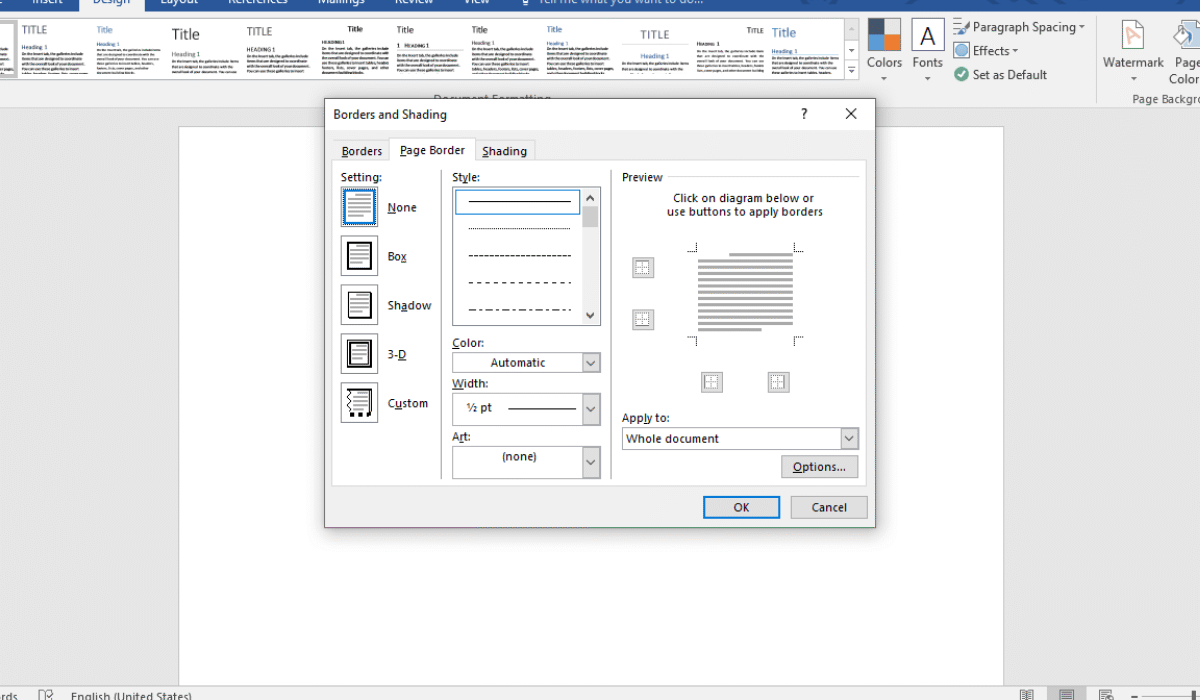
2. Page Border
- Go to the Design tab.
- Click Page Borders.
- In the Borders and Shading window:
- Choose Box.
- Select Style, Colour, and Width for the border.

- Adjust Border Distance from Margin
- In the Page Borders window, click Options.
- Under Measure from, choose Text or Edge of page.
- Set the distance from margin (Top, Bottom, Left, and Right)
- Click OK.
This lets you control space between the border and the text.
Conclusion
In conclusion, margins and borders play an important role in improving the appearance and readability of a Microsoft Word document. Proper margins create balanced white space around the content, making the document neat and professional. Borders, on the other hand, enhance visual appeal by framing the page and highlighting important information.
By adjusting margins and borders settings correctly, you can make your document look more organized, attractive, and suitable for formal or creative purposes. Every section of this tutorial focuses on clear explanations, useful examples, and practical tips that you can apply immediately.
